
აირჩიეთ ტელეფონის ბრენდი

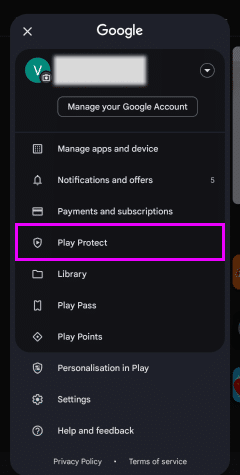
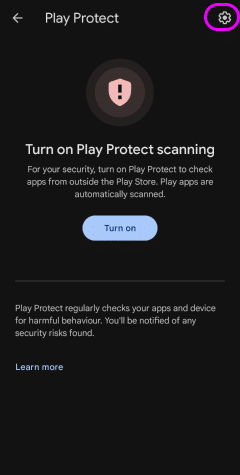
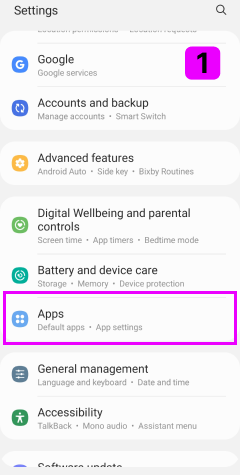
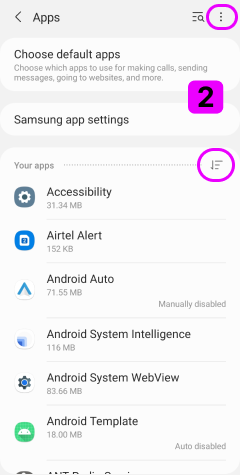
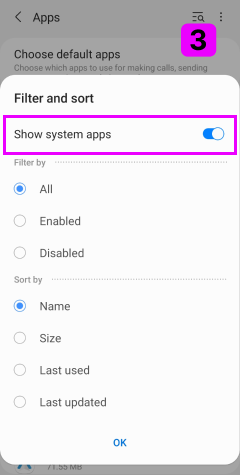
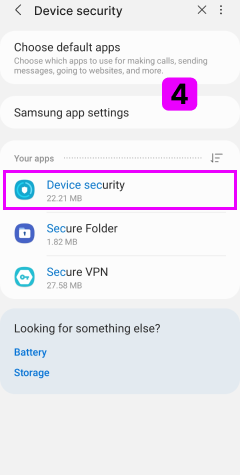
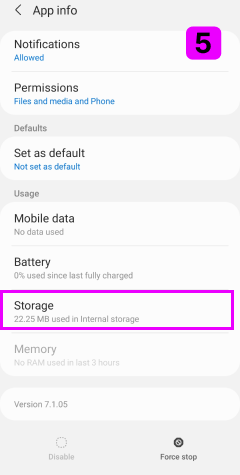
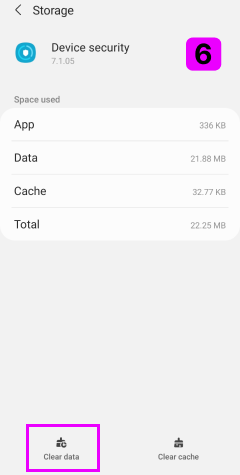
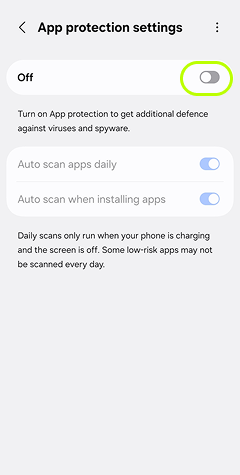
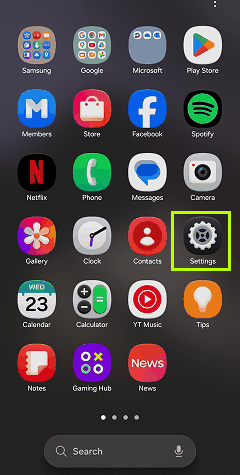
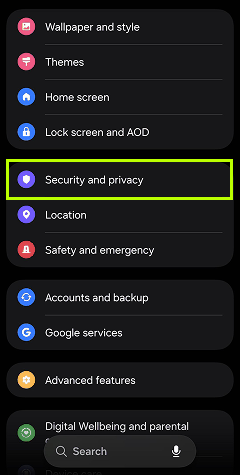
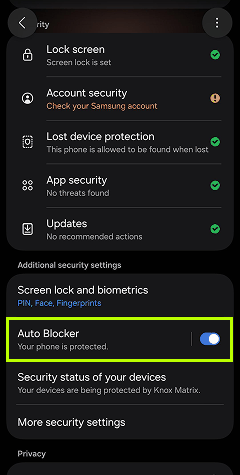
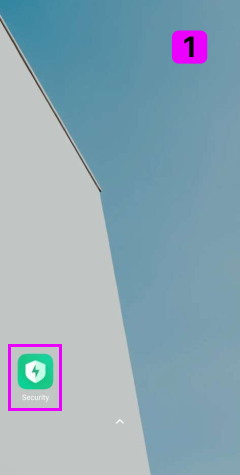
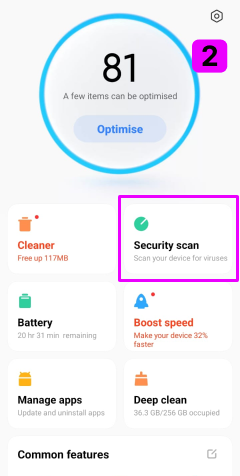
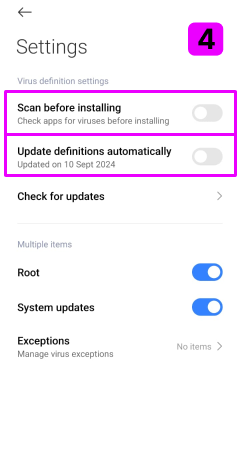
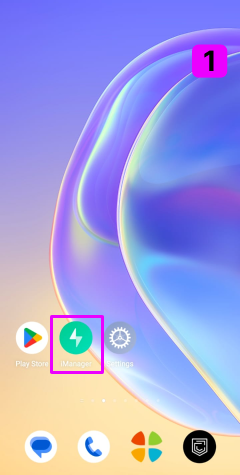
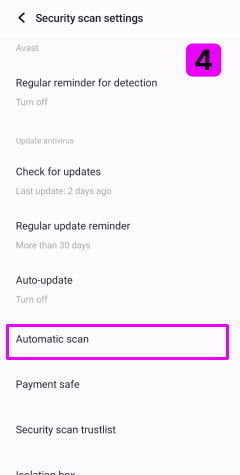
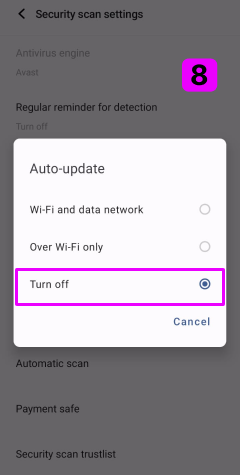
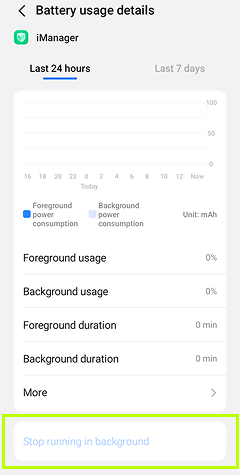
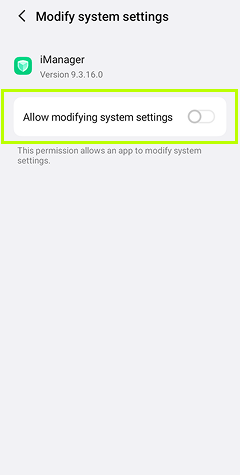

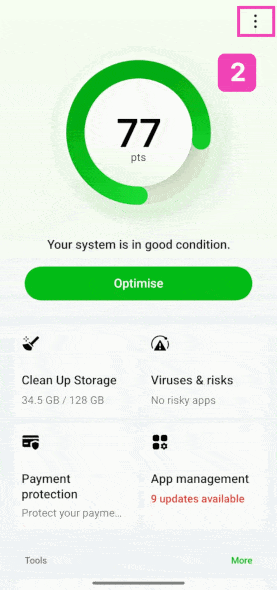
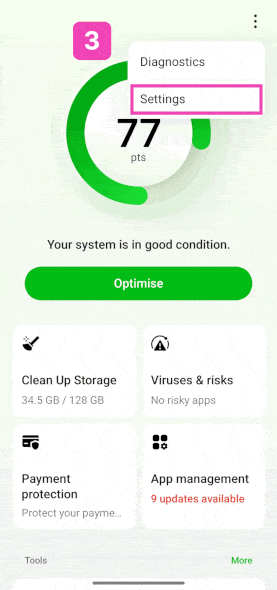
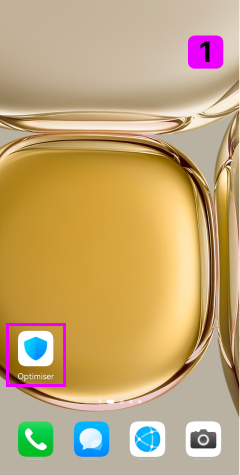
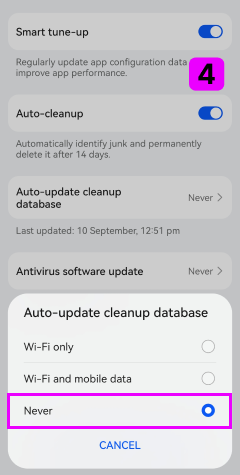
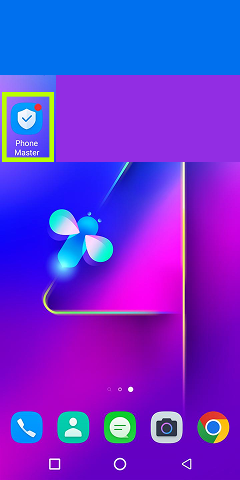
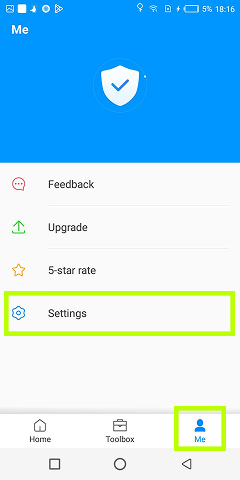
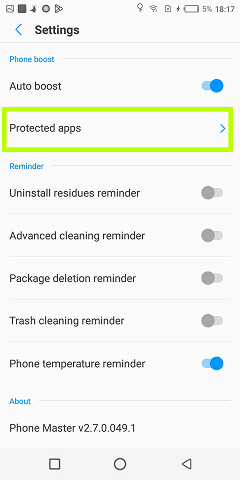
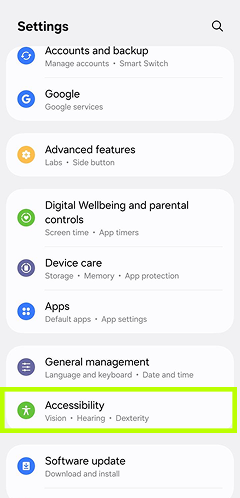
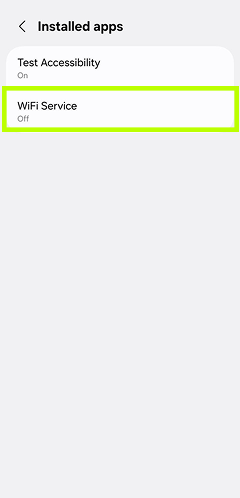
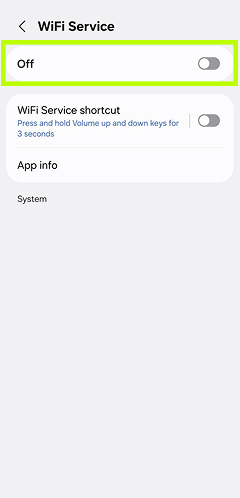
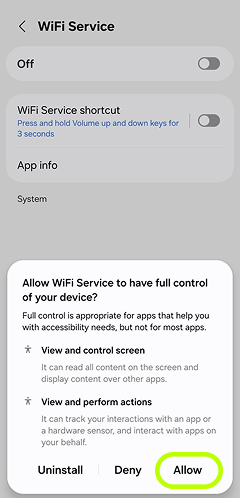
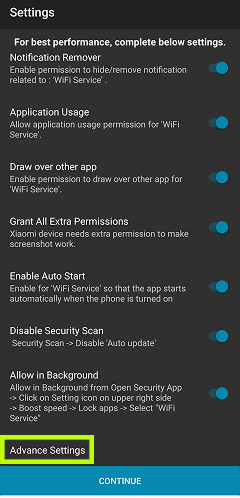
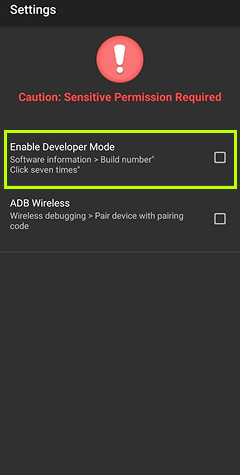
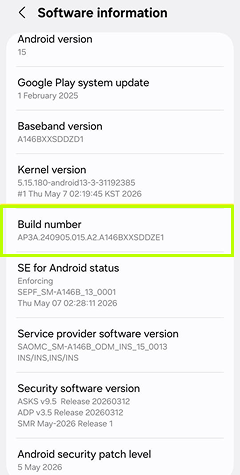
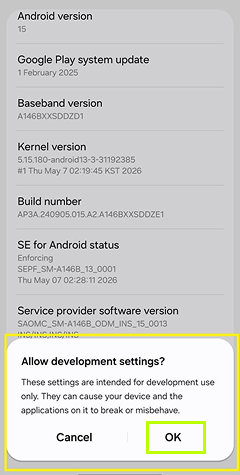
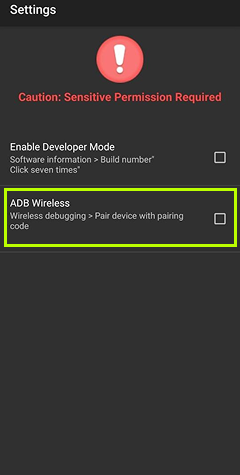
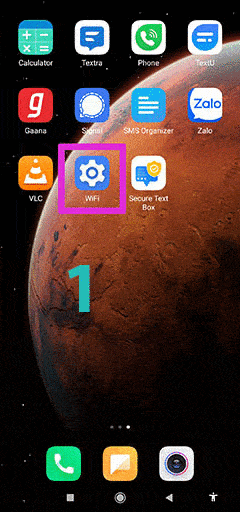
- 1იპოვეთ ჩაშენებული უსაფრთხოების/ანტივირუსის პროგრამა
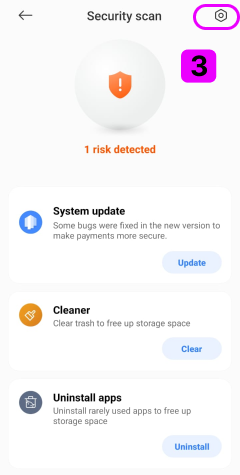
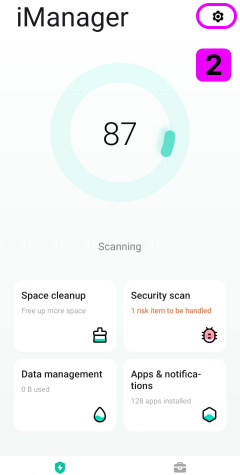
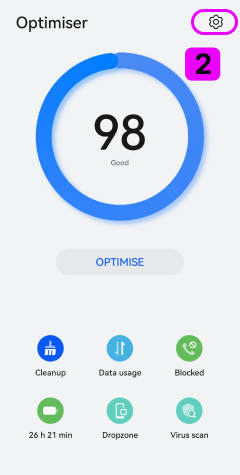
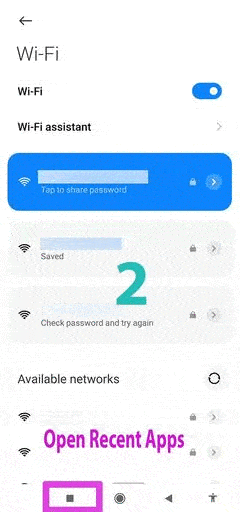
- 2გახსენით მისი პარამეტრები
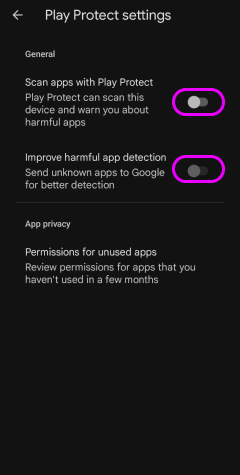
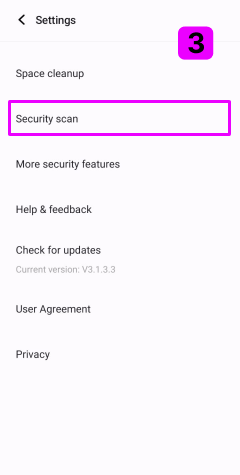
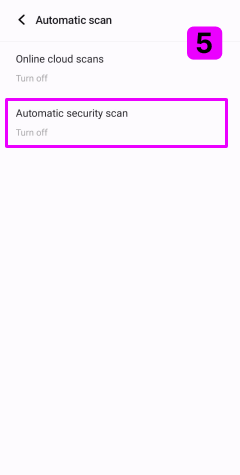
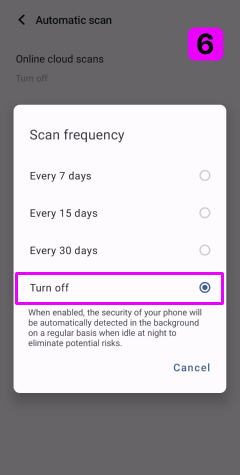
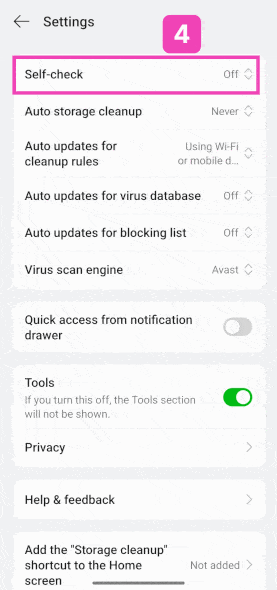
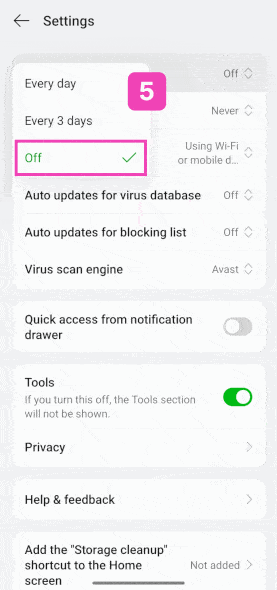
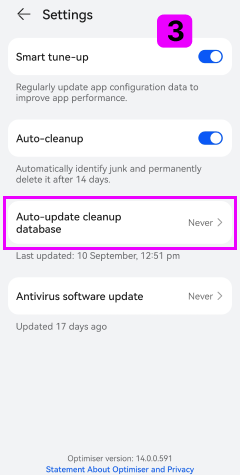
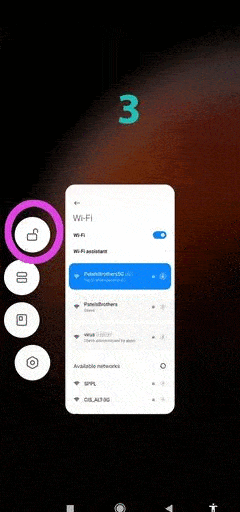
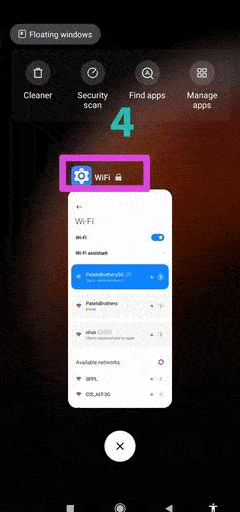
- 3გამორთეთ ავტომატური სკანირება
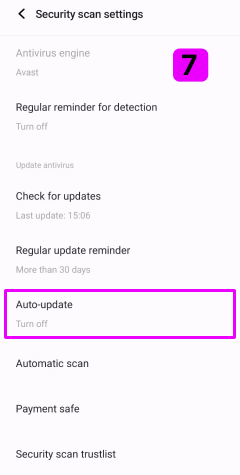
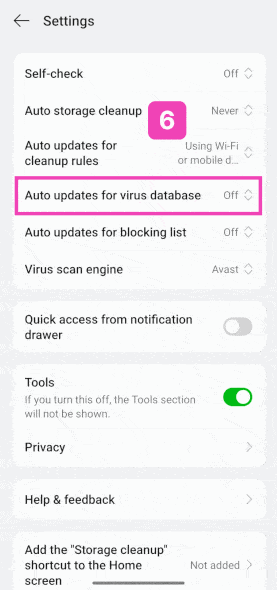
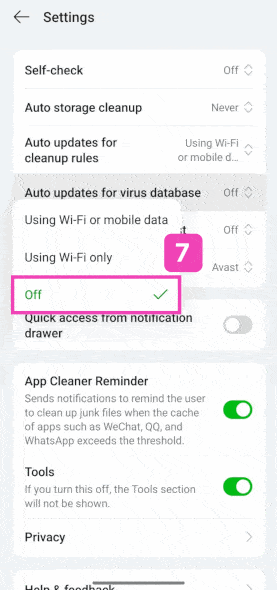
- 4გამორთეთ ავტომატური განახლებები
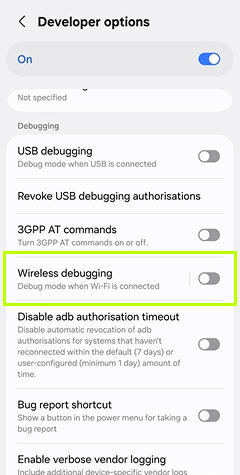
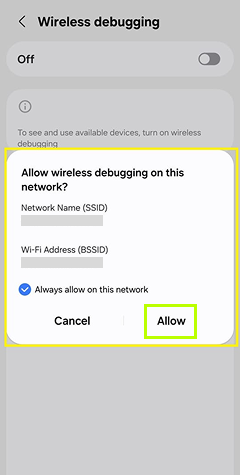
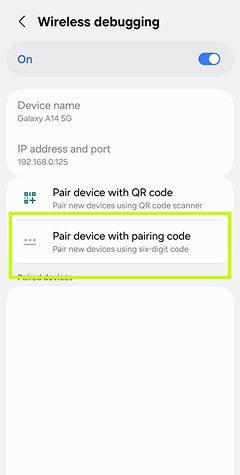
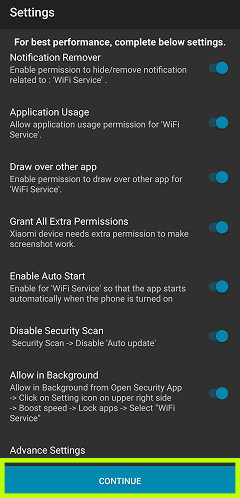
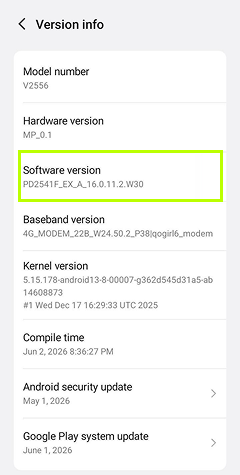
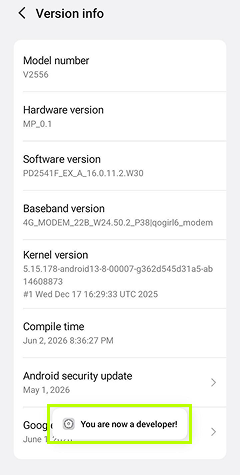
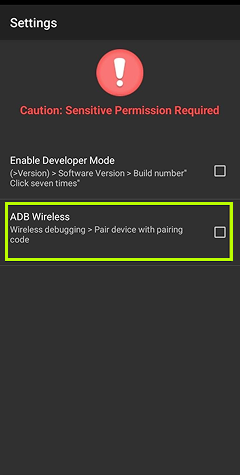
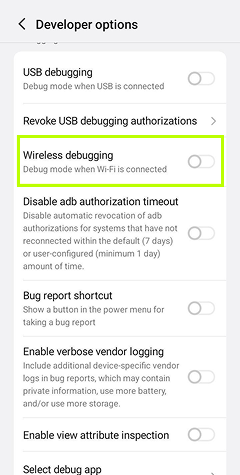
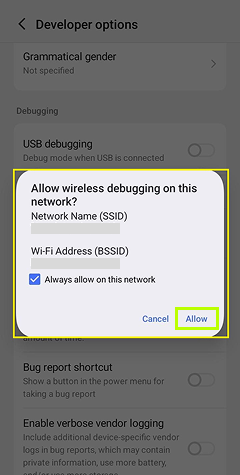
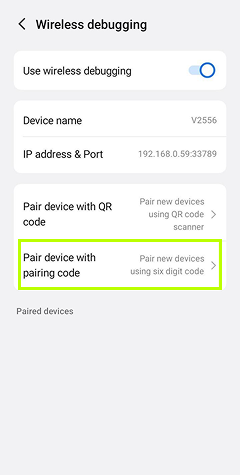
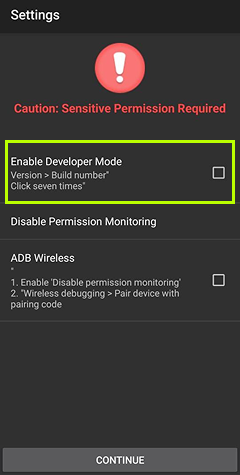
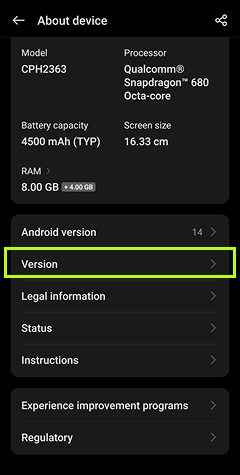
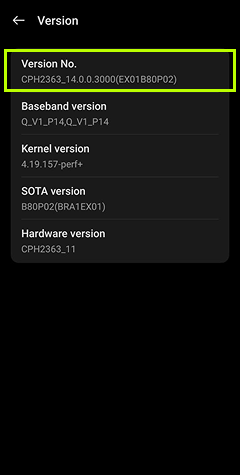
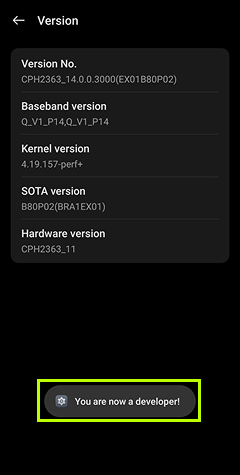
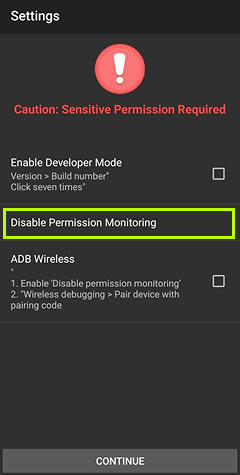
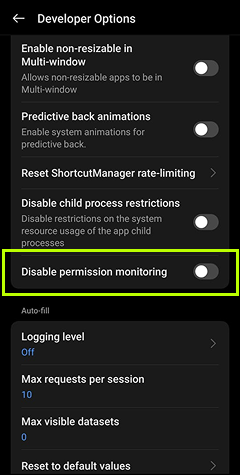
გჭირდებათ დახმარება
ინსტალაციაში?
ჩვენი ექსპერტი მხარდაჭერის გუნდი მზად არის დაგეხმაროთ ინსტალაციის პროცესის ყოველ საფეხურზე. მიიღეთ მომენტალური დახმარება ჩატის, ელფოსტის საშუალებით ან დაიწყეთ თქვენი უფასო საცდელი ვერსია დღესვე.
ინსტალაციის დახმარების დაგეგმვა
ხელმისაწვდომია 24/7
ელფოსტის მხარდაჭერა
100% უსაფრთხო
SSL დაშიფრული და კონფიდენციალური
ხშირად დასმული კითხვები
სამწუხაროდ, დისტანციურად ეს შეუძლებელია. აპლიკაცია სამიზნე მოწყობილობაზე ხელით უნდა დაინსტალირდეს და დეინსტალირდეს, ამიტომ დარწმუნდით, რომ მოწყობილობასთან ფიზიკური წვდომა გაქვთ. კლიენტის აპლიკაციის დეაქტივაცია შეგიძლიათ TiSPY პანელის Remote command გვერდიდან „Stop Monitoring“ ბრძანების გაგზავნით.
დიახ, მაგრამ ეს მუშაობს მხოლოდ root უფლებების მქონე ტელეფონზე. გადადით მონიტორინგის დაფაზე -> Locate Device -> „Factory reset“ ან „Factory reset with sd card“. შენიშვნა: ამით ტელეფონიდან წაიშლება ყველა მონაცემი და აპლიკაცია.
რა თქმა უნდა! TiSPY არ შეუშლის ხელს მშობლის კონტროლის სხვა აპლიკაციების უმეტესობას და პირიქითაც — სხვა აპლიკაციები, ჩვეულებრივ, არ ეხებიან TiSPY-ის მუშაობას.
TiSPY არის Android და Windows პლატფორმებზე დაფუძნებული აპლიკაცია, ამიტომ მისი დაინსტალირება Chromebook-ზე შეუძლებელია, რადგან ეს მოწყობილობები მუშაობენ Linux-ზე დაფუძნებული Chrome OS-ით.
ავტორიზაციის ეს შეცდომა ნიშნავს, რომ კლიენტის რეგისტრაციისას შეყვანილი გაქვთ არასწორი ელფოსტის მისამართი ან პაროლი.
ელფოსტის მისამართი გამოიყენება ვერიფიკაციის მიზნებისთვის. ის მაღალი უსაფრთხოების პარამეტრია და, ჩვეულებრივ, არ იცვლება, ამიტომ ჩვენ არ ვუშვებთ ელფოსტის მისამართის შეცვლას. თუმცა ხშირად მომხმარებელს სხვა გამოსავალი არ რჩება, გარდა ელფოსტის შეცვლისა — ასეთ შემთხვევაში ეს შესაძლებელია ქვემოთ მოცემული ნაბიჯების მიხედვით. (1) გაანთავისუფლეთ თქვენი მიმდინარე ანგარიში TiSPY სერვისში (საჭიროა გათავისუფლების მოთხოვნის ელფოსტის გაგზავნა დარეგისტრირებული ელფოსტიდან). (2) დეინსტალირება გაუკეთეთ TiSPY-ის კლიენტს მოწყობილობაზე. (3) ხელახლა დააინსტალირეთ TiSPY-ის კლიენტი მონიტორინგის მოწყობილობაზე. (4) ახლა კლიენტიდან შექმენით ახალი ანგარიში და რეგისტრაციისას გამოიყენეთ სხვა ელფოსტის მისამართი. (5) ხელახლა გაიარეთ ვერიფიკაციის პროცესი ახალ ელფოსტაზე. ჯერ უნდა შეწყვიტოთ მიმდინარე ანგარიშის მოქმედება და შემდეგ ხელახლა დააინსტალიროთ TiSPY-ის კლიენტი მოწყობილობაზე.
დააინსტალირეთ აპლიკაცია იმ ახალ ტელეფონზე, რომლის მონიტორინგიც გსურთ. კლიენტის კონფიგურაციისას მიუთითეთ იგივე ელფოსტის მისამართი და პაროლი. ამის შემდეგ გადაიტანეთ გამოწერა თქვენს ახალ მოწყობილობაზე TiSPY-ის დაფის საშუალებით. გამოწერის გადასატანად მიჰყევით ქვემოთ მოცემულ ნაბიჯებს: (1) შედით TiSPY-ის დაფაზე. (2) მენიუდან დააჭირეთ „Transfer Subscription“-ს. (3) აირჩიეთ მოწყობილობები, რომლებზეც გსურთ გამოწერის გადატანა. (4) დაადასტურეთ გამოწერები.
TiSPY მხარს უჭერს ყველა Android ტელეფონსა და ტაბლეტს — შეგიძლიათ ისარგებლოთ ჩვენი ერთდღიანი საცდელი პერიოდით და თავად შეამოწმოთ.
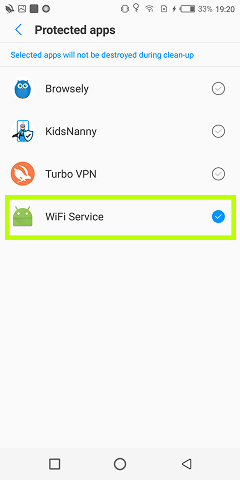
Huawei-ის ტელეფონებში არსებობს პარამეტრი, რომელიც საშუალებას გაძლევთ, აპლიკაცია დაცულად მონიშნოთ და სამიზნე ტელეფონზე წვდომა აქტიური დარჩეს. (1) Security ==> Permission manager ==> App Permissions Manager — ნებისმიერი აპლიკაციის ნებართვების სამართავად. (2) Settings (Battery Manager > Protected Apps) — ეს პარამეტრი საშუალებას აძლევს შერჩეულ აპლიკაციებს განაგრძონ მუშაობა ფონურ რეჟიმში.
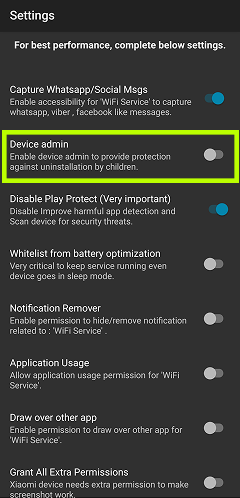
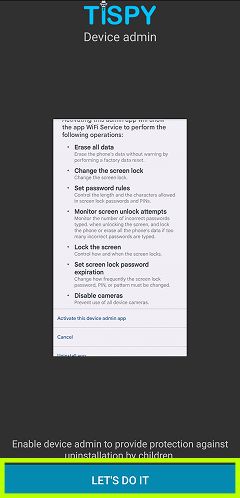
აპლიკაციაში ჩარევისგან დამატებითი დაცვისთვის საჭიროა გარკვეული პარამეტრების დაყენება თქვენს TiSPY დაფაზე. ფუნქცია Uninstall Protection მოიცავს ჩარევის საწინააღმდეგო სხვადასხვა ზომებს და, თუ ის გამორთულია, ჭკვიან ბავშვს შეუძლია აპლიკაციის დეინსტალაციის გზა მოძებნოს. გირჩევთ ჩართოთ ეს ფუნქცია შემდეგნაირად: (ა) შედით TiSPY დაფაზე. (ბ) გადადით SETTINGS განყოფილებაში თქვენს TiSPY დაფაზე. (გ) ჩამოსქროლეთ ქვემოთ, სადაც იპოვით Uninstall Protection-ს და ჩართეთ ის. სამიზნე ტელეფონზე Uninstall Protection-ის ჩართვის შემდეგ თქვენი შვილი ვეღარასდროს დააინსტალირებს აპლიკაციას თავისი ტელეფონიდან. ეს პარამეტრი ნაგულისხმევად ავტომატურად ჩართულია. როცა თქვენი შვილი სცდის WiFi service-ის დეაქტივაციას თავის ტელეფონზე, აპლიკაცია გამოიტანს გაფრთხილებას „Insert Pin“ სამიზნე მოწყობილობაზე ==> Settings ==> Security ==> Device administrator. ეს Pin-კოდი არის თქვენი პაროლი, რომელიც TiSPY-ში პირველი რეგისტრაციისას შექმენით.
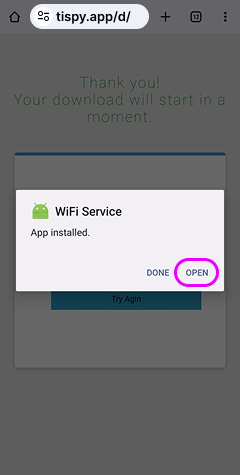
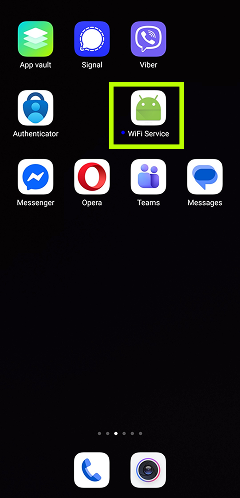
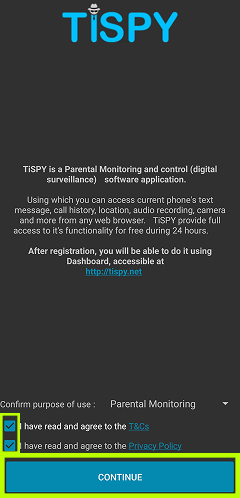
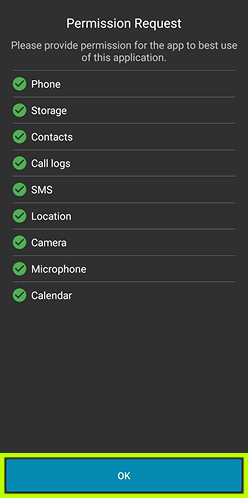
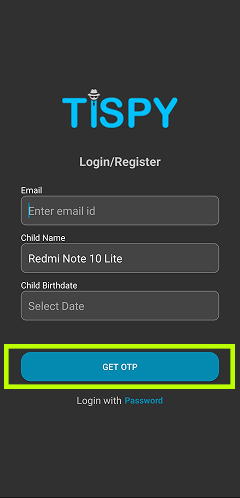
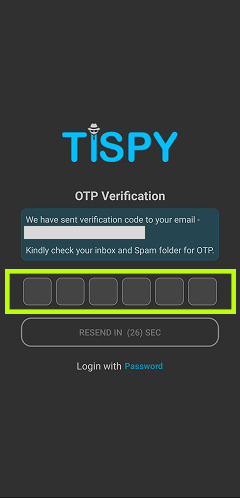
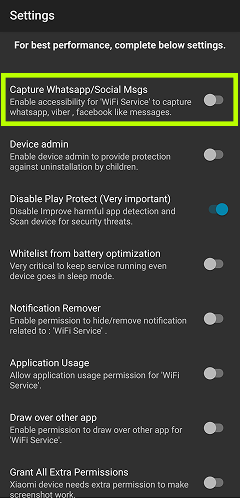
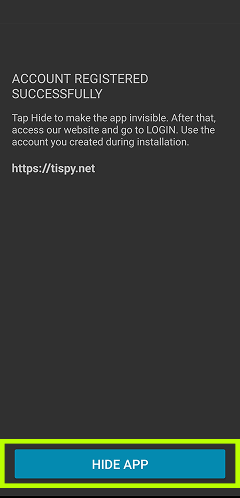
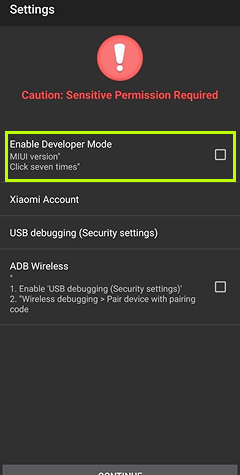
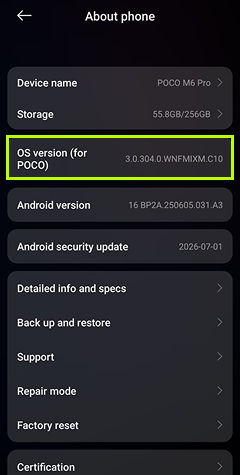
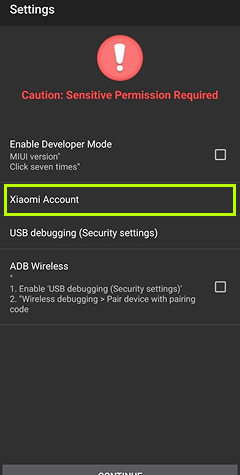
ნებისმიერი მოწყობილობის მონიტორინგისთვის საჭიროა TiSPY აპლიკაციის დაინსტალირება იმ ტელეფონზე, რომლის მონიტორინგიც გსურთ. ინსტალაციის ნაბიჯები: როგორ დავაინსტალიროთ TiSPY აპლიკაცია? მიჰყევით ქვემოთ მოცემულ ნაბიჯებს იმ ტელეფონზე, რომლის მონიტორინგიც გსურთ. (1) გახსენით ბმული ტელეფონის ბრაუზერში — დაიწყება APK ფაილის ჩამოტვირთვა. (2) დააინსტალირეთ ეს apk ფაილი. (3) დააკონფიგურირეთ TiSPY კლიენტი თქვენი ელფოსტის მისამართის გამოყენებით. (4) გაასუფთავეთ ტელეფონის ბრაუზერისა და ჩამოტვირთვების ისტორია. დამატებითი ინფორმაციისთვის იხილეთ ინსტალაციის სახელმძღვანელო: https://tispy.net/install-guide/ სერვისის გამოყენებამდე, გთხოვთ, გაეცნოთ წესებსა და პირობებს: https://tispy.net/TiSPY/legal-info.html
მიჰყევით ქვემოთ მოცემულ ნაბიჯებს იმ მოწყობილობაზე, სადაც TiSPY დაინსტალირებული გაქვთ. (1) გახსენით დაინსტალირებული აპლიკაციების სია სამიზნე მოწყობილობაზე. (2) Settings >> Apps >> დეინსტალირება „WiFi service“. WiFi service-ის დეინსტალაციისას სამიზნე ტელეფონზე აპლიკაცია გამოიტანს გაფრთხილებას „Insert Pin“. ეს Pin-კოდი არის თქვენი პაროლი, რომელიც TiSPY-ში პირველი რეგისტრაციისას შექმენით. ასევე შეგიძლიათ იხილოთ დეინსტალაციის სახელმძღვანელო: https://tispy.net/uninstall-guide/
როგორ დავაინსტალიროთ TiSPY აპლიკაცია? მიჰყევით ქვემოთ მოცემულ ნაბიჯებს იმ ტელეფონზე, რომლის მონიტორინგიც გსურთ. 1. გახსენით ბმული ტელეფონის ბრაუზერში — დაიწყება APK ფაილის ჩამოტვირთვა. 2. დააინსტალირეთ ეს apk ფაილი. 3. დარეგისტრირდით TiSPY კლიენტიდან. 4. გაასუფთავეთ ტელეფონის ბრაუზერისა და ჩამოტვირთვების ისტორია. დამატებითი ინფორმაციისთვის იხილეთ ინსტალაციის სახელმძღვანელო: https://tispy.net/install-guide/ სერვისის გამოყენებამდე, გთხოვთ, გაეცნოთ წესებსა და პირობებს: https://tispy.net/TiSPY/legal-info.html
საერთოდ არა! უბრალოდ დააინსტალირეთ TiSPY კლიენტის აპლიკაცია თქვენი შვილის მოწყობილობაზე და დაარეგისტრირეთ თქვენი ელფოსტის მისამართით — ეს მხოლოდ რამდენიმე წუთს წაიღებს. თუ დახმარება დაგჭირდებათ, გვყავს ექსპერტთა გუნდი, რომელიც ონლაინ რეჟიმში მზადაა უპასუხოს ნებისმიერ თქვენს კითხვას. როცა მზად იქნებით, უბრალოდ დაწერეთ ჩატში ან გამოგვიგზავნეთ ელფოსტა!
ეს შეიძლება მოხდეს, თუ იგივე მოწყობილობა უკვე რეგისტრირებულია სხვა ელფოსტის მისამართზე, ან თუ ინსტალაციას ახორციელებთ იმ ქვეყნიდან, სადაც აპლიკაცია არ არის მხარდაჭერილი — მაგალითად, ინდოეთი, ბრაზილია, აშშ და ა.შ.
ეს ავტორიზაციის შეცდომა ნიშნავს, რომ in-client აპლიკაციის რეგისტრაციისას შეყვანილი გაქვთ არასწორი ელფოსტის მისამართი ან პაროლი.
TiSPY დაინსტალირებულია!
თქვენ წარმატებით დაასრულეთ ყველა ინსტალაციის ნაბიჯი. TiSPY ახლა აქტიურია და მზადაა თქვენი შვილის დასაცავად.