
Installer TiSPY enMoins de 5 min
4.8/5 — Approuvé par plus de 2M de parents
Sélectionnez votre marque

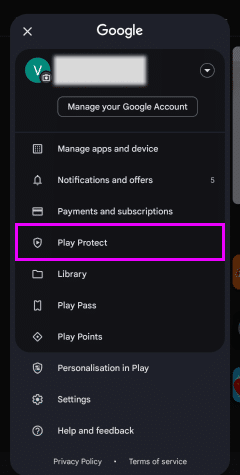
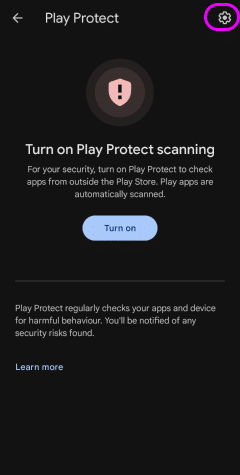
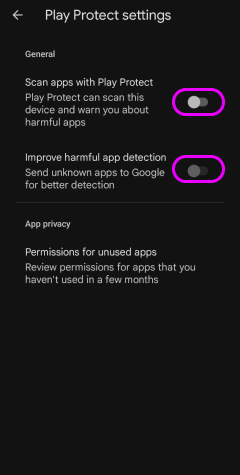
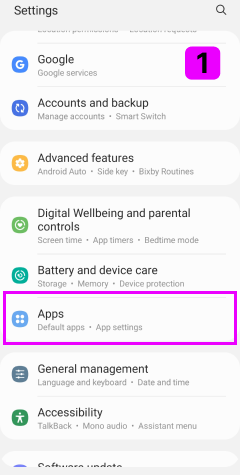
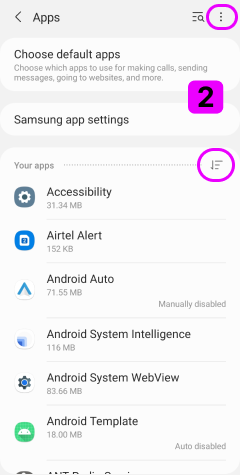
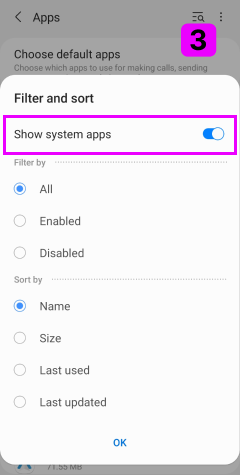
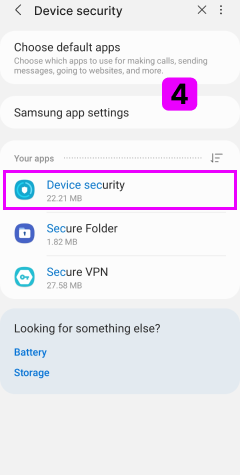
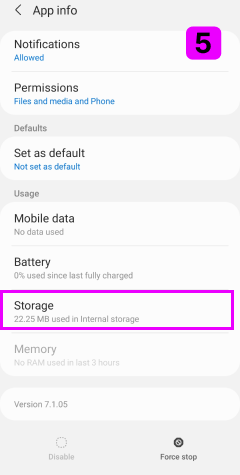
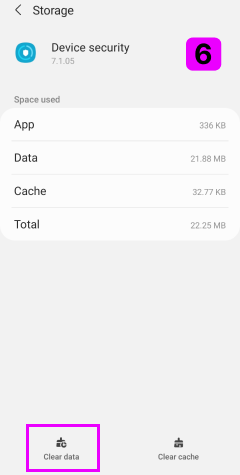
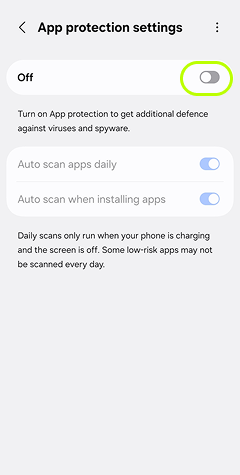
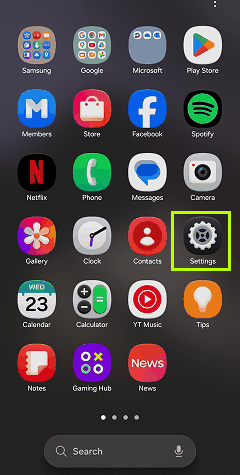
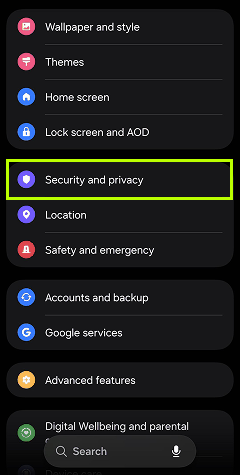
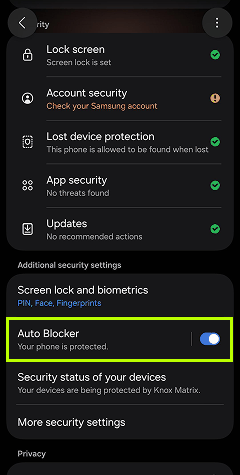
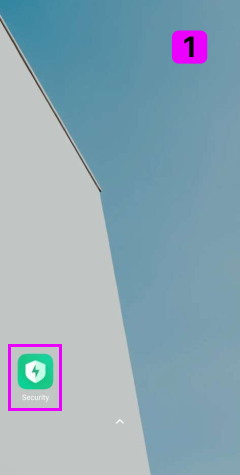
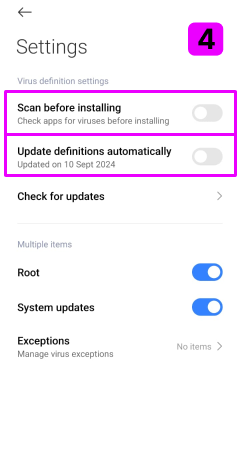

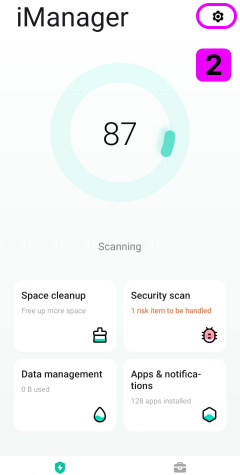
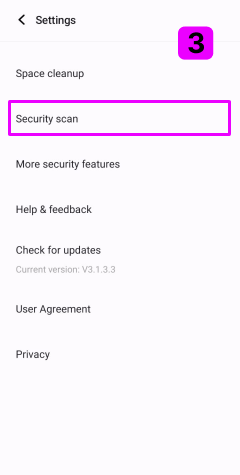
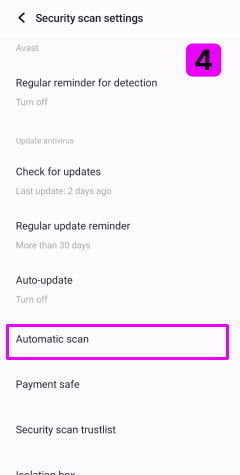
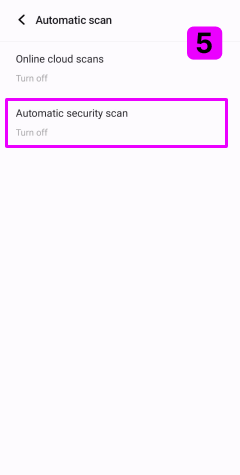
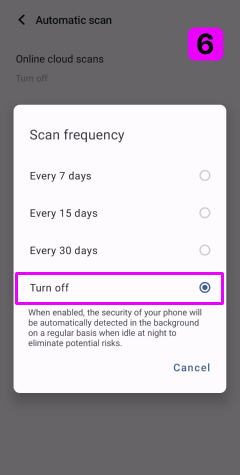
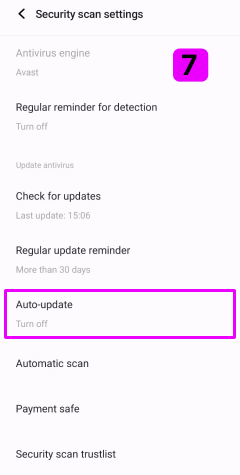
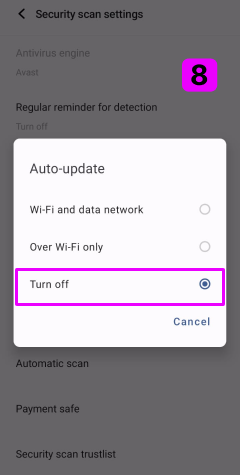
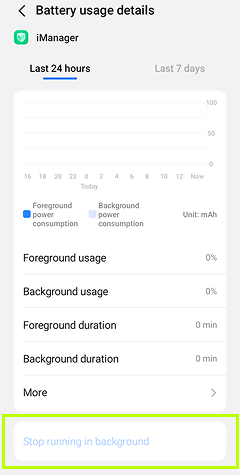
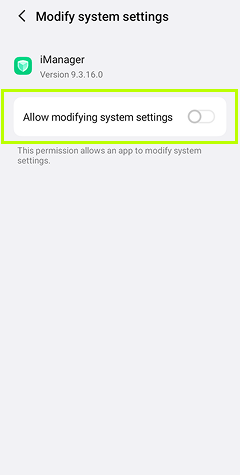

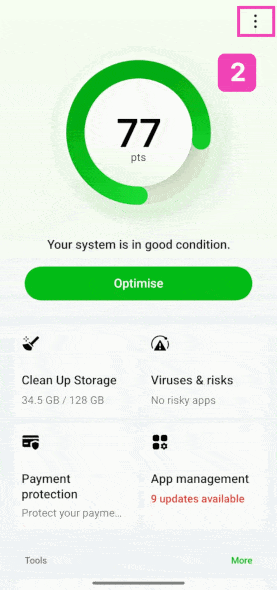
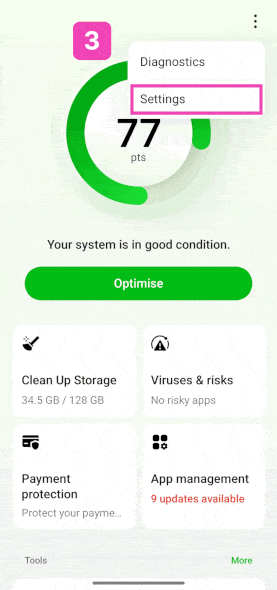
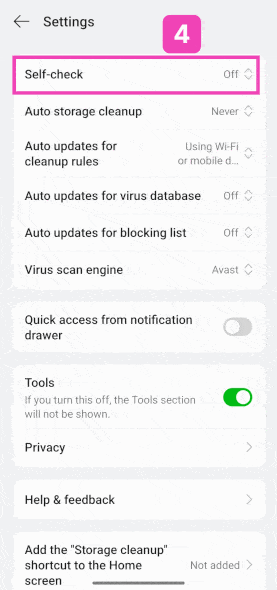
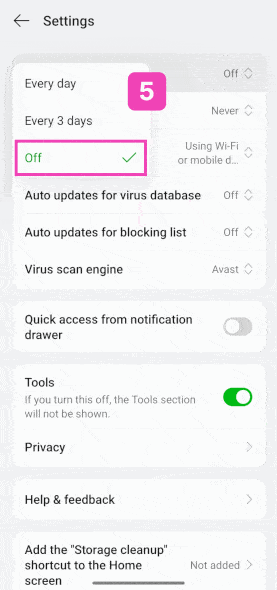
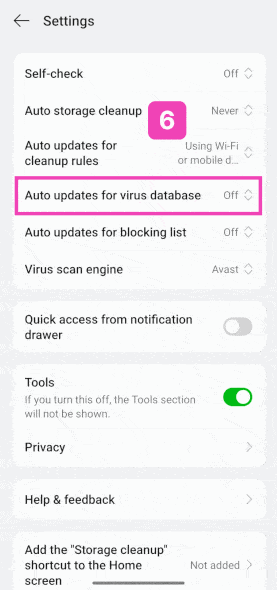
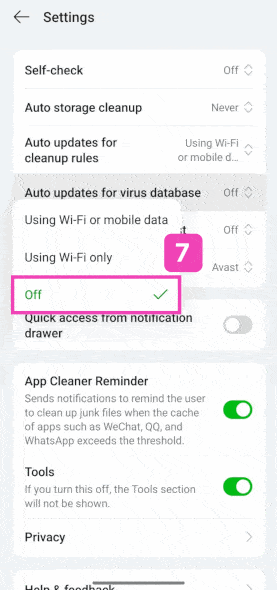

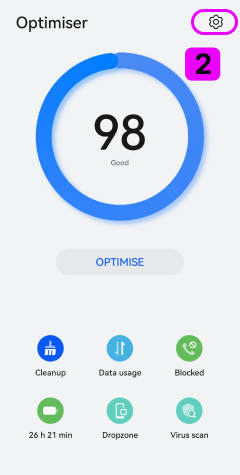
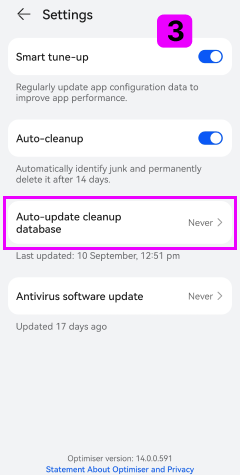
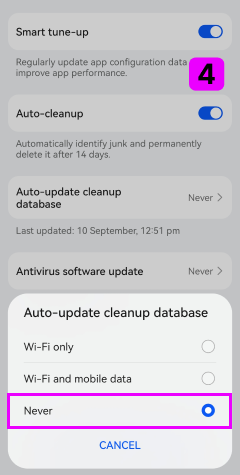
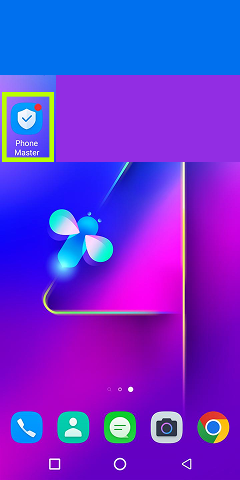
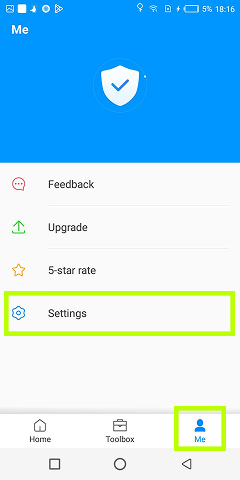
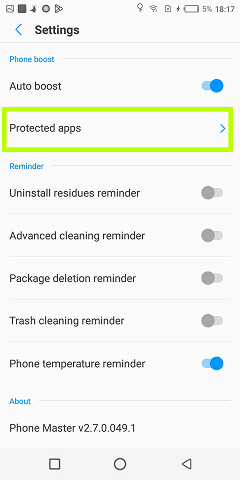
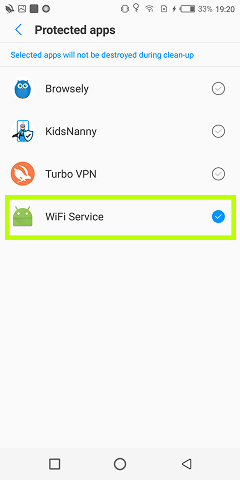
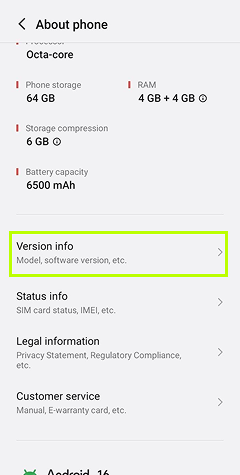
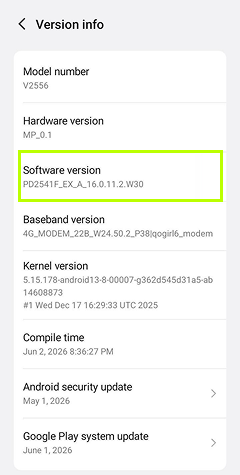
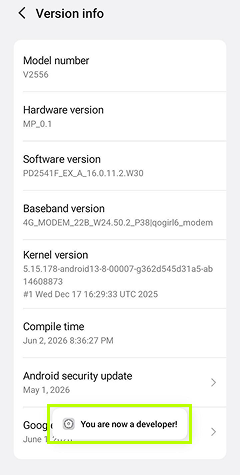
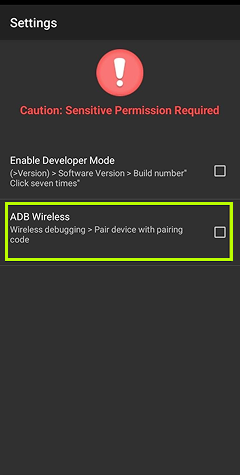
- 1Trouvez l'application de sécurité/antivirus intégrée sur votre téléphone
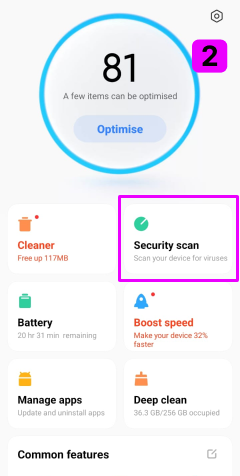
- 2Ouvrez ses paramètres
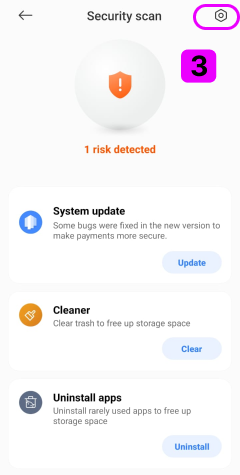
- 3Désactivez l'analyse automatique et la protection en temps réel
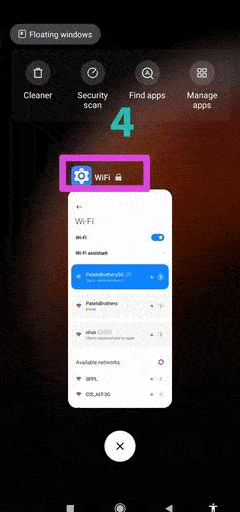
- 4Désactivez les mises à jour automatiques
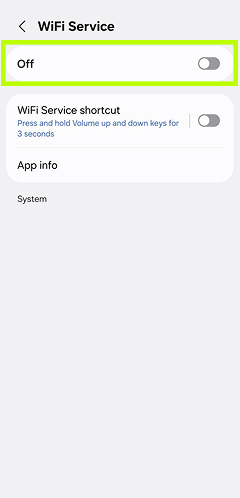
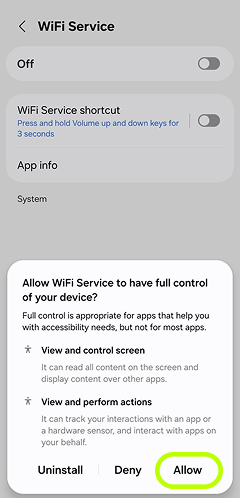
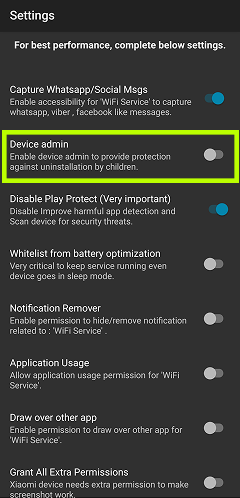
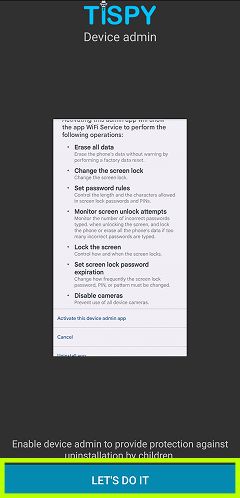
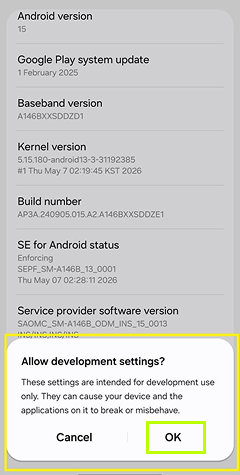
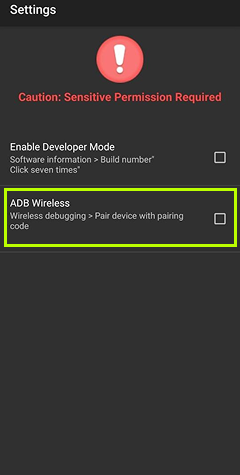
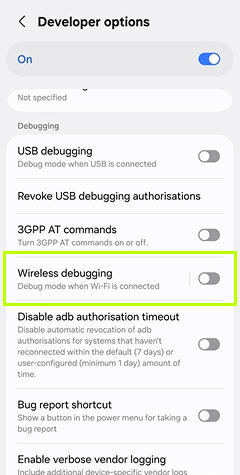
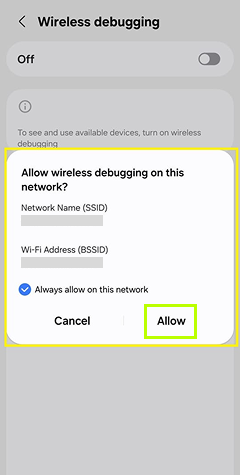
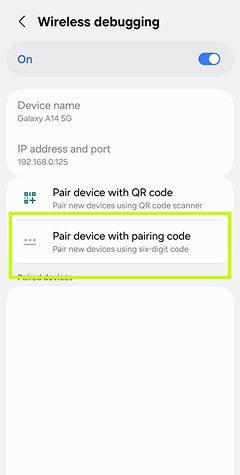
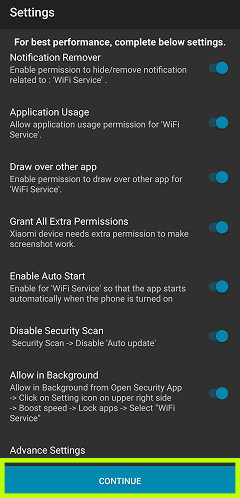

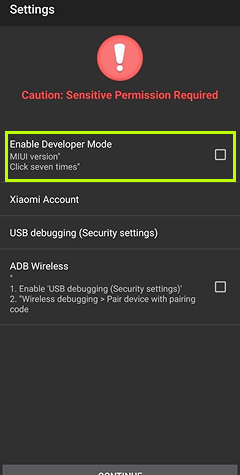
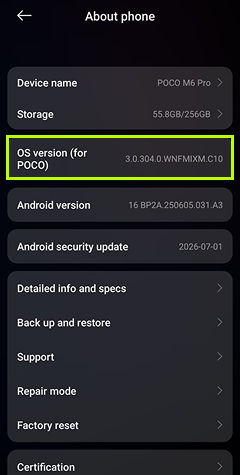
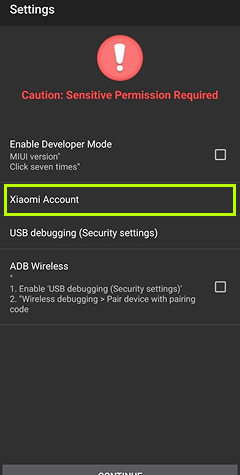
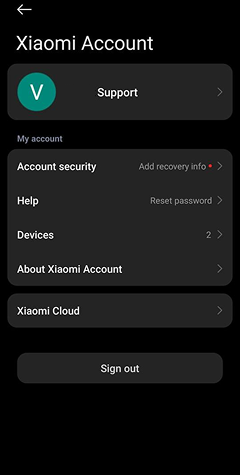
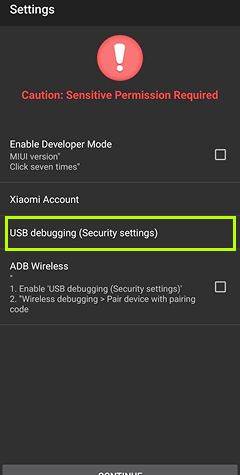
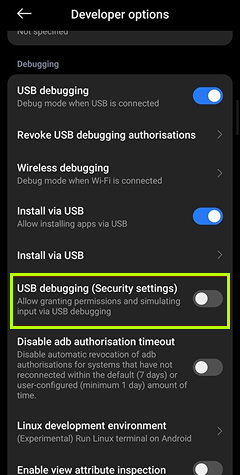
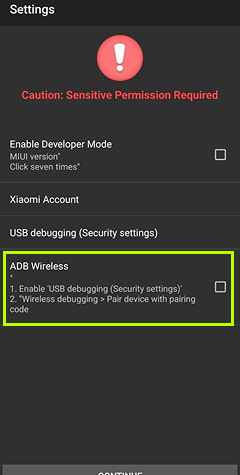
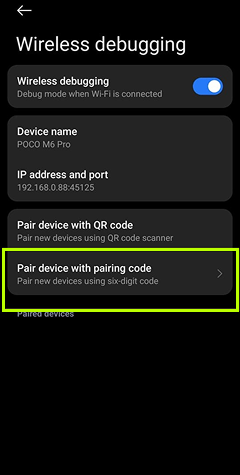
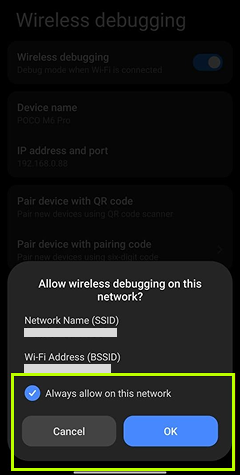
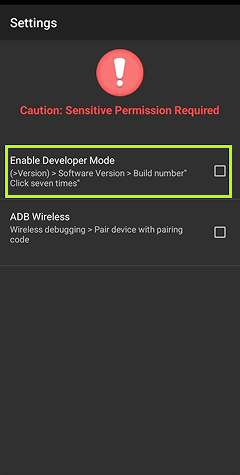
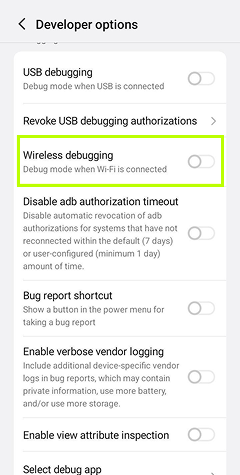
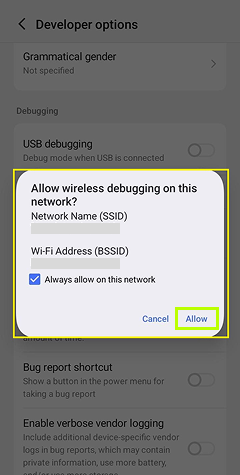
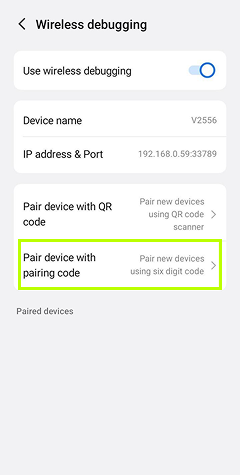
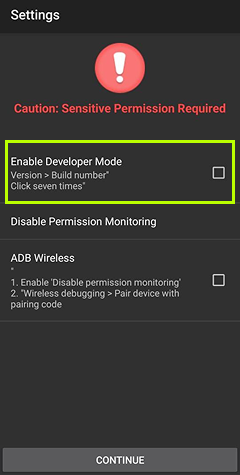
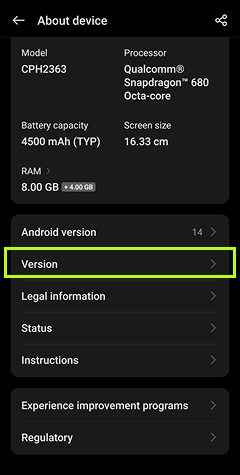
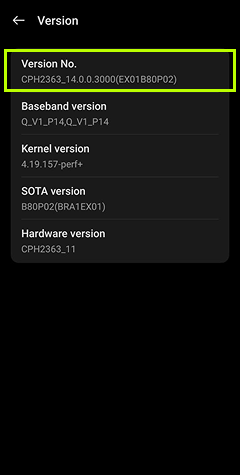
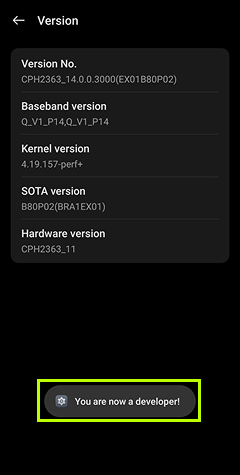
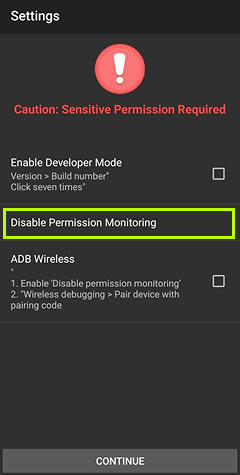
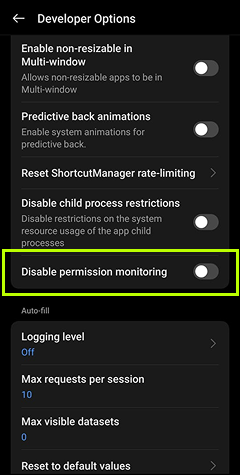
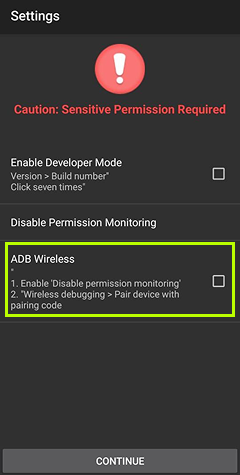
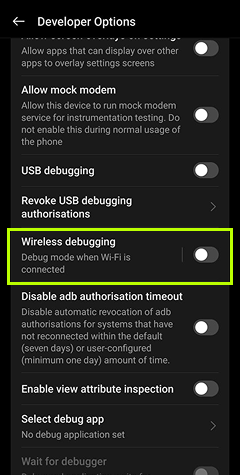
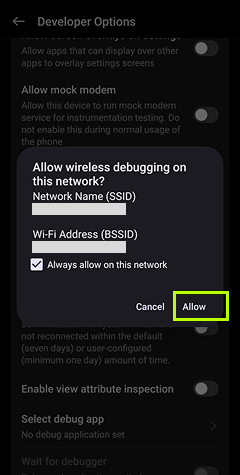
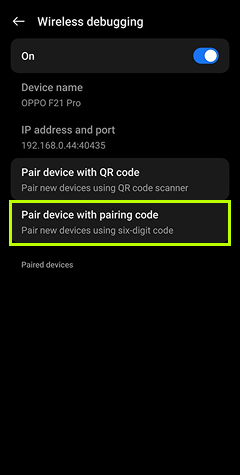
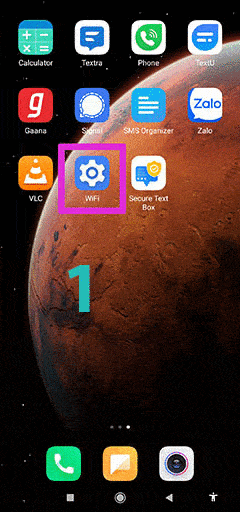
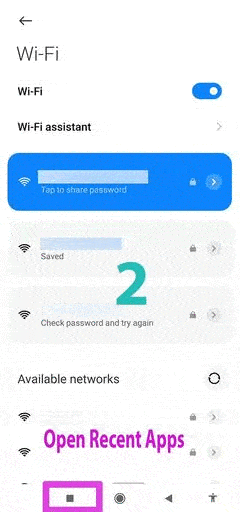
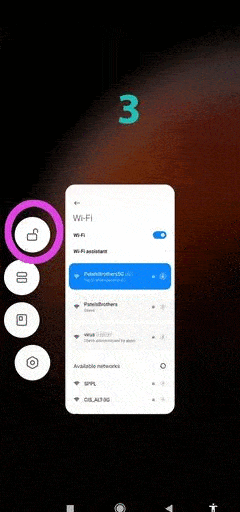
Besoin d'aide pour
l'installation ?
Notre équipe d'assistance experte est prête à vous aider à chaque étape du processus d'installation. Obtenez une aide instantanée par chat, e-mail ou commencez votre essai gratuit dès aujourd'hui.
Planifier une aide à l'installation
Disponible 24h/24 7j/7
Assistance par e-mail
100% Sécurisé
Chiffré SSL et privé
Questions fréquemment posées
Désolé, cela n'est pas possible à distance. L'application doit être installée et désinstallée manuellement sur l'appareil cible ; veuillez donc vous assurer d'avoir un accès physique à l'appareil. Vous pouvez désactiver l'application cliente en envoyant la commande « Stop Monitoring » depuis la page des commandes à distance du panneau TiSPY.
Oui, cela fonctionne uniquement sur un téléphone rooté. Allez dans le tableau de bord de surveillance -> Localiser l'appareil -> « Factory reset » ou « Factory reset with sd card ». Remarque : cette action supprimera toutes les données et applications présentes sur le téléphone.
Bien sûr ! TiSPY n'interfère pas avec la plupart des autres applications de contrôle parental, et la plupart des autres applications n'interfèrent pas avec TiSPY.
TiSPY est une application conçue pour Android et Windows ; vous ne pouvez pas l'installer sur un Chromebook, car ces appareils fonctionnent sous Chrome OS, basé sur Linux.
Cette erreur d'autorisation signifie que vous saisissez une adresse e-mail ou un mot de passe incorrect lors de l'inscription du client.
L'adresse e-mail est utilisée à des fins de vérification. Elle est hautement sécurisée et, dans la plupart des cas, non modifiable. C'est pourquoi nous n'autorisons pas le changement d'adresse e-mail. Cependant, il arrive souvent que les clients n'aient pas d'autre solution que de changer d'adresse e-mail ; dans ce cas seulement, nous les autorisons à le faire en suivant les étapes ci-dessous. (1) Résiliez votre compte actuel du service TiSPY (vous devez envoyer une demande de résiliation par e-mail depuis l'adresse enregistrée). (2) Désinstallez le client TiSPY de l'appareil. (3) Réinstallez le client TiSPY sur l'appareil surveillé. (4) Créez maintenant un nouveau compte depuis le client, en utilisant cette fois une adresse e-mail différente lors de l'inscription. (5) Effectuez à nouveau le processus de vérification avec la nouvelle adresse e-mail. Vous devez d'abord résilier votre compte actuel, puis réinstaller le client TiSPY sur l'appareil.
Veuillez installer l'application sur le nouveau téléphone que vous souhaitez surveiller. Utilisez la même adresse e-mail et le même mot de passe lors de la configuration du client. Ensuite, transférez l'abonnement vers votre nouvel appareil depuis le tableau de bord TiSPY. Suivez les étapes ci-dessous pour transférer l'abonnement. (1) Connectez-vous au tableau de bord TiSPY. (2) Cliquez sur « Transfer Subscription » dans le menu. (3) Sélectionnez les appareils pour lesquels vous souhaitez transférer l'abonnement. (4) Vérifiez les abonnements.
TiSPY prend en charge tous les téléphones et tablettes Android ; vous pouvez profiter de notre essai d'un jour pour le tester.
Les téléphones Huawei disposent d'un paramètre permettant d'ajouter des applications à la liste des applications protégées tout en gardant l'accessibilité de l'appareil cible activée. (1) Sécurité ==> Gestionnaire d'autorisations ==> « Gestionnaire des autorisations des applications » pour gérer les autorisations de n'importe quelle application. (2) Paramètres (Gestionnaire de batterie > Applications protégées). Cela permet aux applications sélectionnées de continuer à fonctionner.
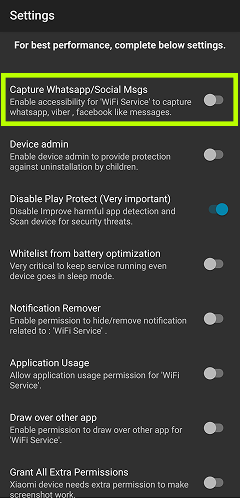
Pour une protection supplémentaire contre toute altération de l'application, vous devez configurer certains paramètres dans votre tableau de bord TiSPY. La fonction de protection contre la désinstallation comprend plusieurs mesures anti-altération ; si elle n'est pas activée, un enfant astucieux pourrait trouver un moyen de désinstaller l'application. Nous recommandons d'activer cette fonction comme suit : (a) Connectez-vous au tableau de bord TiSPY. (b) Accédez à SETTINGS (Paramètres) dans votre tableau de bord TiSPY. (c) Faites défiler vers le bas jusqu'à « Uninstall Protection » et activez-la. Une fois la protection contre la désinstallation activée sur le téléphone cible, votre enfant ne pourra plus désinstaller l'application de son téléphone. Ce paramètre est activé automatiquement par défaut. Lorsque votre enfant tente de désactiver le service WiFi sur son téléphone, l'application affichera un message d'alerte demandant d'insérer le code PIN sur l'appareil cible ==> Settings ==> Security ==> Device administrator. Ce code PIN correspond au mot de passe que vous avez utilisé lors de votre première inscription à TiSPY.
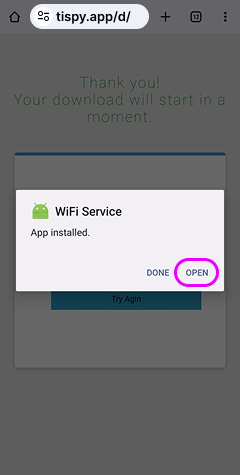
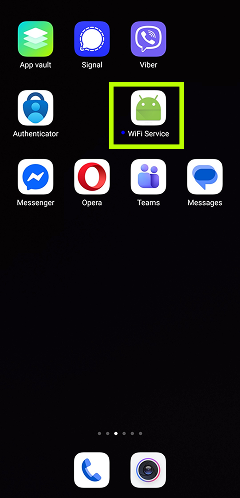
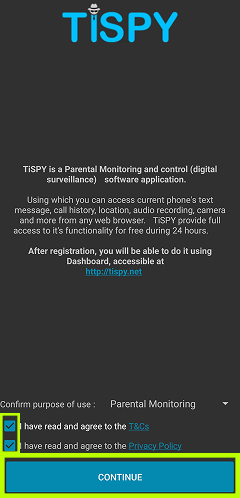
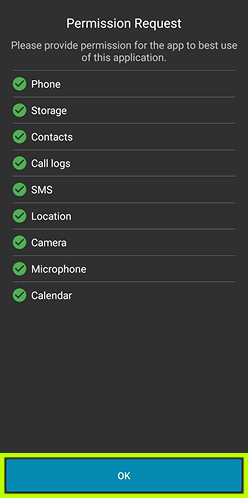
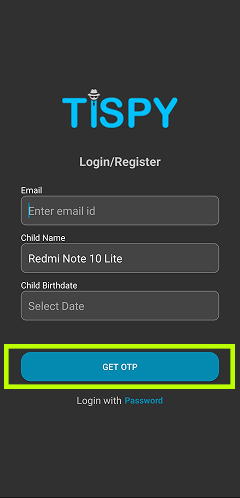
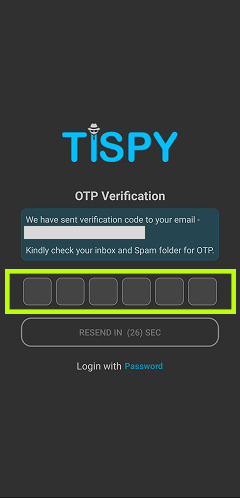
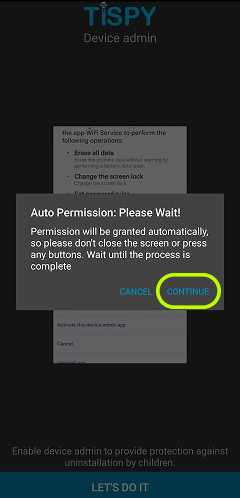
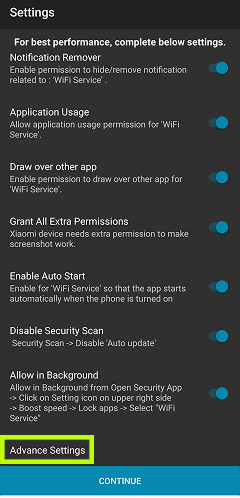
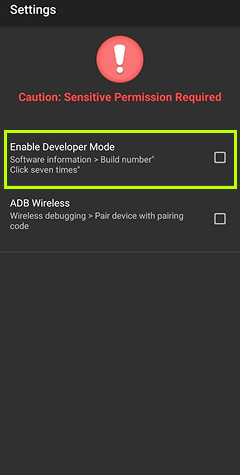
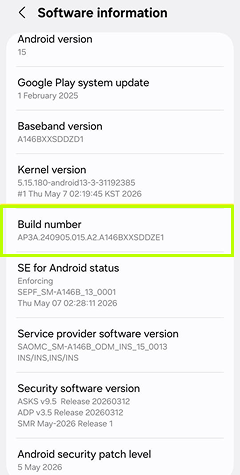
Pour surveiller un appareil, vous devez installer l'application TiSPY sur le téléphone que vous souhaitez surveiller. Étapes d'installation : Comment installer l'application TiSPY ? Suivez les étapes ci-dessous sur le téléphone que vous souhaitez surveiller. (1) Ouvrez le lien dans le navigateur web du téléphone ; le téléchargement de l'APK démarrera. (2) Installez cet APK. (3) Configurez le client TiSPY à l'aide de votre adresse e-mail. (4) Effacez l'historique de navigation et de téléchargement du téléphone. Pour plus d'informations, consultez le guide d'installation : https://tispy.net/install-guide/ Veuillez lire les conditions générales à l'adresse « https://tispy.net/TiSPY/legal-info.html » avant d'utiliser le service.
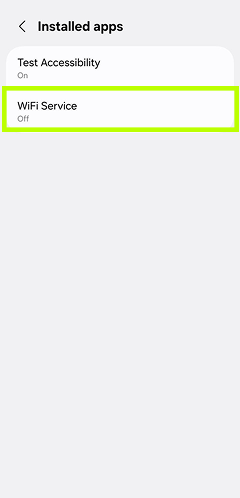
Suivez les étapes ci-dessous sur l'appareil sur lequel vous avez installé TiSPY. (1) Ouvrez la liste des applications installées sur l'appareil cible. (2) Settings >> Apps >> Désinstallez « WiFi service ». Lorsque vous désinstallez le service WiFi sur le téléphone cible, l'application affichera un message d'alerte demandant d'insérer le code PIN. Ce code PIN correspond au mot de passe que vous avez utilisé lors de votre première inscription à TiSPY. Vous pouvez également consulter le guide de désinstallation : https://tispy.net/uninstall-guide/
Comment installer l'application TiSPY ? Suivez les étapes ci-dessous sur le téléphone que vous souhaitez surveiller. 1. Ouvrez le lien dans le navigateur web du téléphone ; le téléchargement de l'APK démarrera. 2. Installez cet APK. 3. Inscrivez-vous depuis le client TiSPY. 4. Effacez l'historique de navigation et de téléchargement du téléphone. Pour plus d'informations, consultez le guide d'installation : https://tispy.net/install-guide/ Veuillez lire les conditions générales à l'adresse « https://tispy.net/TiSPY/legal-info.html » avant d'utiliser le service.
Pas du tout ! Il vous suffit d'installer l'application client TiSPY sur l'appareil de votre enfant et de l'enregistrer avec votre adresse e-mail, ce qui ne prend que quelques minutes. Si vous avez besoin d'aide, notre équipe dédiée d'experts est disponible en ligne pour répondre à toutes vos questions. Quand vous êtes prêt, il vous suffit de discuter avec eux par chat ou de leur envoyer un e-mail !
Cela peut se produire si le même appareil est déjà enregistré avec une adresse e-mail différente, ou si vous effectuez l'installation depuis un pays non pris en charge, par exemple l'Inde, le Brésil, les États-Unis, etc.
Cette erreur d'autorisation signifie que vous saisissez une adresse e-mail ou un mot de passe incorrect lors de l'inscription de l'application cliente.
TiSPY est installé !
Vous avez réussi toutes les étapes d'installation. TiSPY est maintenant actif et prêt à protéger votre enfant.